1 Creating invoices
Creating invoices refers to the process of generating a formal billing document within the system for products or services provided to a customer. The invoice contains important transaction details such as customer information, products or services sold, quantity, price, taxes, and the total payable amount.
To manage invoices within the system, navigate through the following path:
General POS → POS → Invoices
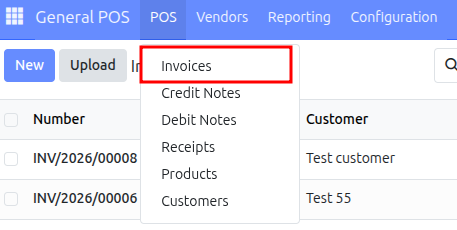
Fig 5.3.1 Navigating Invoices
Upon opening the Invoices page, the system displays a list of existing invoice records. To review an existing invoice, select the required invoice record from the list.
Fig5.3.2 Invoices Page
To create a new invoice, click the “New” button located at the top of the interface. The system will then open the invoice creation form for data entry and processing.
Fig 5.3.3 Creating Invoices
After completing the invoice details, the system performs validation checks to ensure that all required information is correctly entered. These validations include verifying that the total invoice amount is greater than zero, confirming that a valid tax type has been selected, and ensuring that all mandatory fields satisfy the required conditions.
Once the invoice successfully passes all validation checks, the user may click the “Confirm” button. The system then communicates with the EIRMS system to acquire the official Invoice Registration Number and QR-Code. Upon successful registration, the invoice status is automatically updated to Posted, indicating that the invoice has been officially processed and recorded in the system.
Fig 5.3.4 Successful Invoices
5.3.2 . Cancel invoices
The system allows authorized users to cancel invoices when necessary, such as in cases of data entry errors, transaction reversals, or invalid invoice processing. To maintain data integrity and compliance, invoice cancellation can only be performed by users with the appropriate access rights and after the required validation procedures are satisfied. In addition, the cancellation process includes interaction with the Ministry of Revenue (MOR), where required approvals, validations, or confirmations are obtained in accordance with regulatory requirements before the cancellation is finalized.
When an invoice is cancelled, the system records the cancellation action for audit and tracking purposes. The invoice status is updated accordingly, and both the cancellation details and MOR-related verification information are maintained within the system to ensure transparency, accountability, and proper sales reporting.
Fig 5.3.5 Resetting to draft
To cancel an invoice, the user shall open the existing invoice record and click the “Reset to Draft” button. It should be noted that only invoices eligible for draft status modification can proceed through the cancellation process.
In addition, resetting an invoice to draft status requires specific user access rights and permissions. Once the invoice is successfully returned to draft status, the authorized user may proceed with the cancellation process in accordance with the organization’s operational and sales control procedures.
If a user without the required access rights attempts to click the “Reset to Draft” button, the system displays a validation error message indicating that the user is not authorized to perform the requested action. This control mechanism ensures proper security, access management, and protection of sales records within the system.